How to Use Notion for Project Management: Complete Guide
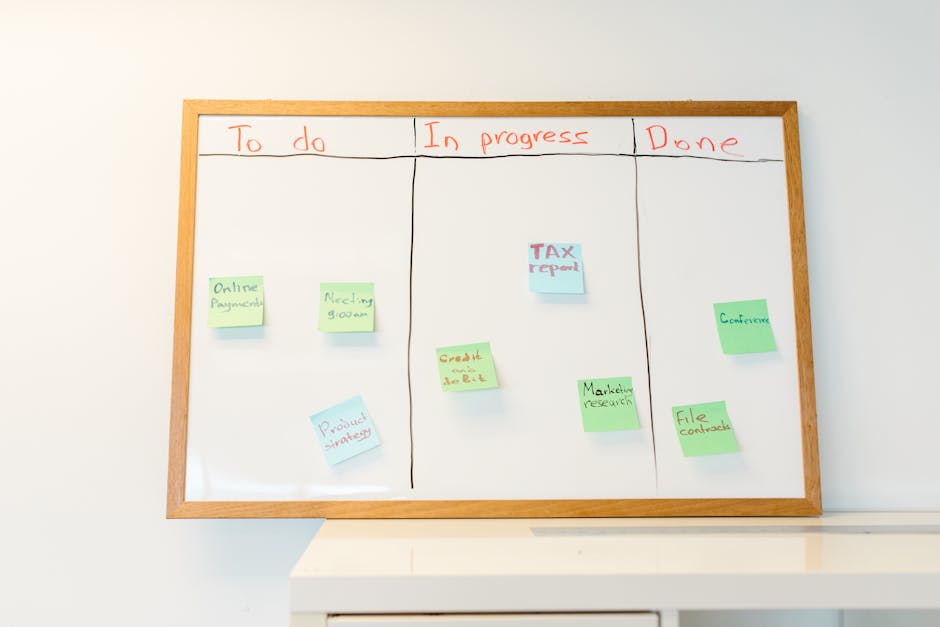
*Photo by RDNE Stock project on Pexels*
Notion has evolved into a powerful project management tool that rivals dedicated solutions like Trello, Asana, and Monday.com. Its advantage is flexibility — you can build the exact system your team needs without switching between multiple apps.
This guide walks you through setting up a complete project management system in Notion, from basic databases to advanced automations.
## Why Choose Notion for Project Management?
| Feature | Notion | Trello | Asana | Monday.com |
|---|---|---|---|---|
| Kanban Boards | ✅ | ✅ | ✅ | ✅ |
| Gantt Timeline | ✅ | ❌ | ✅ | ✅ |
| Database Relations | ✅ | ❌ | ❌ | ❌ |
| Wiki / Docs | ✅ | ❌ | ✅ | ❌ |
| Free Tier | ✅ (unlimited) | ✅ (limited) | ✅ (limited) | ✅ (limited) |
| Automation | ✅ (built-in) | ✅ (Butler) | ✅ | ✅ |
Notion wins on flexibility and price, especially for small to mid-sized teams that need docs, wikis, and project tracking in one place.
## Step 1: Create Your Project Database
Start with a single database that tracks every project:
1. Create a new page and type `/database`
2. Select “Table” view
3. Add these properties:
| Property | Type | Purpose |
|---|---|---|
| Project Name | Title | What you are working on |
| Status | Select | To Do / In Progress / Done / On Hold |
| Priority | Select | Low / Medium / High / Urgent |
| Due Date | Date | Deadline |
| Team Members | Relation | Links to People database |
| Tags | Multi-select | Categorization |
## Step 2: Add Multiple Views
The same database can display differently for different purposes:
- Kanban Board (Group by Status) — Daily task management
- Timeline (Gantt view) — Project scheduling
- Calendar (Group by Due Date) — Deadline overview
- List (Filtered, sorted) — What needs attention today
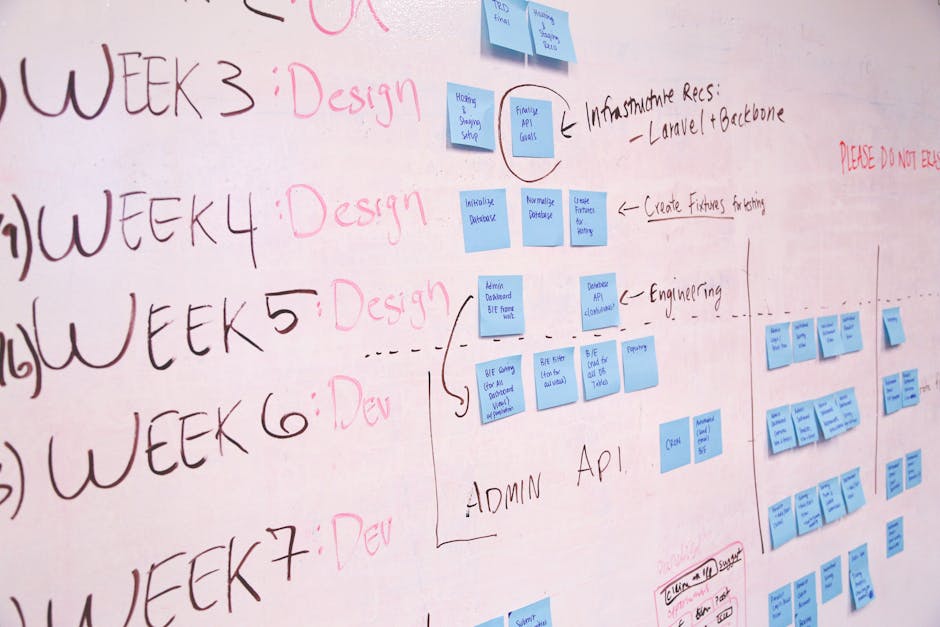
*Photo by Startup Stock Photos on Pexels*
## Step 3: Create Relations Between Databases
Notion’s superpower is linking databases. Create these relations for a complete project system:
Projects → Tasks (one-to-many):
Each project has many tasks. Create a Tasks database with a relation property pointing to Projects.
Tasks → Team Members (many-to-many):
Assign tasks to team members. Create a People/Team database and link it to Tasks.
Tasks → Documents (one-to-many):
Link meeting notes, specs, and design docs to specific tasks.
## Step 4: Automations (Notion 2027)
Notion’s built-in automation engine lets you reduce manual work:
| Trigger | Action | Use Case |
|---|---|---|
| Status changes to “In Progress” | Assign to current user | Auto-assign tasks |
| Due date passes | Change priority to High | Escalate overdue items |
| New task created in Projects | Send email to team | New project alerts |
| Status changes to “Done” | Set completed date | Track completion times |
How to set up:
1. Click the database menu (⋮) in the top-right
2. Select “Automations”
3. Define trigger → condition → action
4. Test with a sample task
## Step 5: Build Your Project Dashboard
A central dashboard gives your team a single place to check status:
Template layout:
“`
# Project Dashboard
## My Tasks This Week
[Linked view of Tasks database, filtered to current user, due this week]
## Active Projects
[Linked kanban view, filtered to In Progress status]
## Upcoming Deadlines
[Calendar view of all projects with due dates]
## Quick Actions
[Buttons to create new task, new project, meeting notes]
“`
## Best Practices for Notion Project Management
### Use Templates for Consistency
Create a project template that includes:
- Standard property fields
- A project brief page template
- Default task tags
- Meeting notes template linked to the project
### Implement Weekly Reviews
Set aside 15 minutes every Friday to:
1. Review task completion rates for the week
2. Move overdue items forward
3. Archive completed projects
4. Plan next week’s priorities
### Keep Properties Simple
Avoid over-complicating your database. Each property should answer one question about the task. If you have more than 10 properties, consider splitting into a linked database.

*Photo by Jakub Zerdzicki on Pexels*
## Common Mistakes to Avoid
### Too Many Databases
Starting with 10 linked databases leads to confusion. Begin with Projects + Tasks + Team, and add more as you need them.
### Over-Engineering Views
Most teams need 3 views: Kanban (daily), Timeline (planning), Calendar (deadlines). More than 5 views creates noise.
### Ignoring Templates
Without templates, each new project starts from scratch. Spend 30 minutes building a template — it saves hours.
### Not Using Relations
A flat Tasks database without relations to Projects or People creates silos. Every task should link to at least a project.
## Advanced: Rollup Formulas
Rollups let you calculate values across related databases:
- Count tasks per project: Rollup → Count all
- Sum estimated hours: Rollup → Sum
- Percentage complete: Rollup → Count completed tasks / total tasks × 100
Example formula for completion percentage:
“`
format(slice(prop(“Tasks Completed”), 0, 4)) + “%”
“`
## Conclusion
Notion is one of the best project management tools available in 2027, especially for teams that value flexibility and want docs, wikis, and task tracking in one platform. Start with a simple Projects + Tasks setup, add views as your workflow evolves, and use automations to reduce busywork.
The templates in our Notion template collection give you a head start — download the Project Management Dashboard to get started in minutes.
*For more Notion guides, templates, and productivity resources, visit notionkit.tech.*