How to Automate Your Workflow with Notion Integrations and APIs
Notion automation is the key to turning your messy workspace into a productivity powerhouse. By connecting Notion with third-party tools via native integrations and the Notion API, you can auto-populate databases, sync tasks, send notifications, and build custom workflows—all without manual data entry. Whether you are a freelancer, project manager, or team lead, mastering these automations saves hours each week. This guide walks you through the best integrations, API use cases, and practical steps to automate your Notion workflow today.
## Why Automate Your Notion Workflow?
Manual updates in Notion are time-consuming and error-prone. Automation eliminates repetitive tasks like copying data between apps, moving tasks, or updating statuses. With the right integrations, you can:
- Reduce human error by syncing data automatically.
- Speed up project tracking with real-time updates.
- Free up mental energy for high-value work.
- Scale your workflows without adding complexity.

Photo by Mikhail Nilov on Pexels
## Top Notion Integrations for Automation
Notion offers native integrations with many popular tools. Here are the must-have connections to automate your workflow:
### 1. Slack Integration
Connect Notion to Slack to create tasks from messages, get notifications on database changes, and search Notion directly from Slack. For example, save a Slack message as a new row in your task database with one click.
### 2. Google Calendar Integration
Sync your Notion databases with Google Calendar to auto-create events from deadlines or update due dates. Perfect for project timelines and content calendars.
### 3. Zapier & Make (formerly Integromat)
These no-code automation platforms connect Notion to over 3,000 apps. Use them to:
- Automatically add new email attachments as pages in Notion.
- Create Notion tasks from Trello cards or Asana projects.
- Send Slack alerts when a Notion database item changes.
### 4. GitHub Integration
For developers, link GitHub commits, pull requests, and issues directly to Notion. Track development progress without leaving your workspace.
### 5. Form Tools (Typeform, Tally, Google Forms)
Capture data from forms directly into Notion databases. Ideal for client intake, feedback collection, or lead generation.
## Using the Notion API for Custom Automations
The Notion API gives you programmatic access to your workspace. You can create, read, update, and delete pages and databases. Here’s how to leverage it:
### Getting Started with the Notion API
1. Create an internal integration in Notion (Settings & Members > Integrations > Develop or manage integrations).
2. Copy your API token and share the integration with your target database.
3. Use HTTP requests (via Python, JavaScript, or curl) to interact with your data.
### Practical API Use Cases
- Auto-generate invoices from a project database.
- Sync Notion with a CRM to update client records.
- Build a custom dashboard that pulls data from multiple sources.
- Schedule recurring tasks with a cron job and API calls.
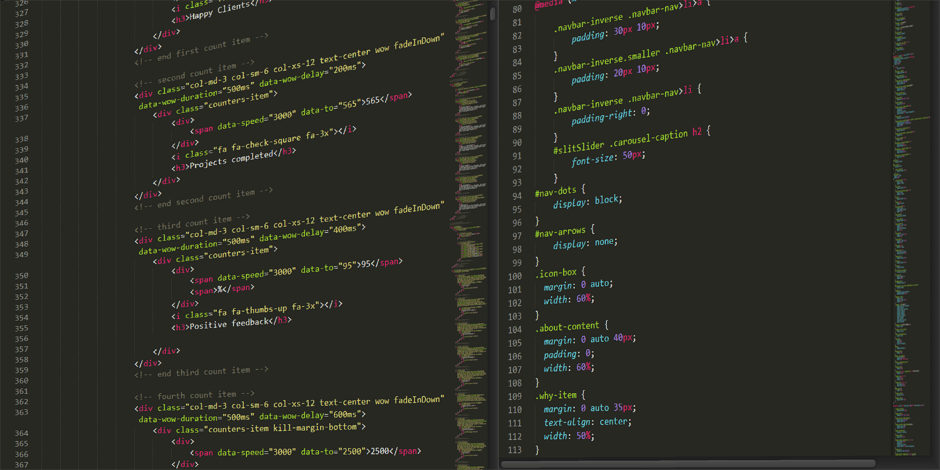
Photo by Pixabay on Pexels
## Step-by-Step: Automate Task Creation from Email
Here’s a real-world example using Zapier to turn incoming emails into Notion tasks:
1. Trigger: New email in Gmail with a specific label (e.g., “Task”).
2. Action: Create a database item in Notion with:
- Title: Email subject line
- Description: Email body (truncated)
- Status: “To Do”
- Due Date: Extract from email text (optional)
3. Result: Every labeled email becomes a task in your Notion project board.
Pro tip: Add a filter so only emails from certain senders trigger the automation.
## Comparison: Native Integrations vs. API vs. Third-Party Tools
| Feature | Native Integrations | Notion API | Third-Party (Zapier/Make) |
|---|---|---|---|
| Ease of setup | Very easy (click & connect) | Moderate (coding required) | Easy (no-code but needs configuration) |
| Flexibility | Limited to pre-built actions | Unlimited (full control) | High (thousands of app combinations) |
| Cost | Free (included with Notion) | Free (API calls are free) | Paid plans (starting ~$20/month) |
| Best for | Simple sync (calendar, Slack) | Custom workflows, developers | Complex multi-step automations |
| Real-time updates | Yes (native) | Polling or webhook-based | Near real-time (2-15 min delay) |
Which should you choose? Start with native integrations for basic needs. If you need more power, use Zapier/Make for no-code automation. For maximum control and custom logic, dive into the Notion API.
## Automating Your Notion Templates
At notionkit.tech, we design templates that are automation-ready. Here’s how to supercharge our templates:
### For the Project Management Template
- Connect to Slack to auto-create tasks from team messages.
- Use Zapier to update task status when a Google Sheet changes.
- Set up a weekly email summary of overdue tasks via the API.
### For the Content Calendar Template
- Sync with Google Calendar for publishing deadlines.
- Auto-populate social media posts from Notion to Buffer via Make.
- Use a form to collect content ideas directly into your database.

Photo by João Jesus on Pexels
## Best Practices for Notion Automation
Follow these tips to avoid common pitfalls:
- Start small: Automate one workflow at a time, then expand.
- Test thoroughly: Run automations in a sandbox database first.
- Use clear naming: Label your integrations and API endpoints for easy troubleshooting.
- Monitor rate limits: Notion API allows up to 3 requests per second per integration.
- Backup critical data: Automations can overwrite data—keep a manual backup.
- Document your flows: Write down what each automation does for future reference.
## Common Mistakes to Avoid
- Over-automating: Not everything needs automation. If a task takes 10 seconds, manual may be faster.
- Ignoring error handling: API calls can fail. Add retries and notifications.
- Forgetting permissions: Your integration must have access to the correct databases.
- Creating loops: Avoid automations that trigger each other endlessly.
## Future-Proof Your Workflow
As Notion evolves, automation possibilities grow. Stay ahead by:
- Following Notion’s API changelog for new features.
- Joining Notion communities for shared automation recipes.
- Experimenting with Notion AI (currently in beta) for smart suggestions.
## Conclusion
Automating your Notion workflow with integrations and the API is not optional—it’s essential for productivity. Start with native connections like Slack and Google Calendar, then level up with Zapier or the API for custom solutions. By eliminating manual data entry, you reclaim hours each week and keep your workspace accurate.
Ready to accelerate your productivity? Visit notionkit.tech to download automation-ready Notion templates and get expert-designed systems that work out of the box. Your future self will thank you.