Best Notion Templates for Managing Team Projects and Collaboration
Managing team projects without a centralized system leads to missed deadlines, scattered files, and endless email threads. The right Notion template solves this by giving your team one place for tasks, docs, and updates. In this guide, you’ll find the best Notion templates for team collaboration — each designed to streamline workflows, boost transparency, and keep everyone accountable. We’ll cover templates for agile teams, marketing departments, remote startups, and more. Plus, you’ll get actionable tips to customize them for your unique needs.
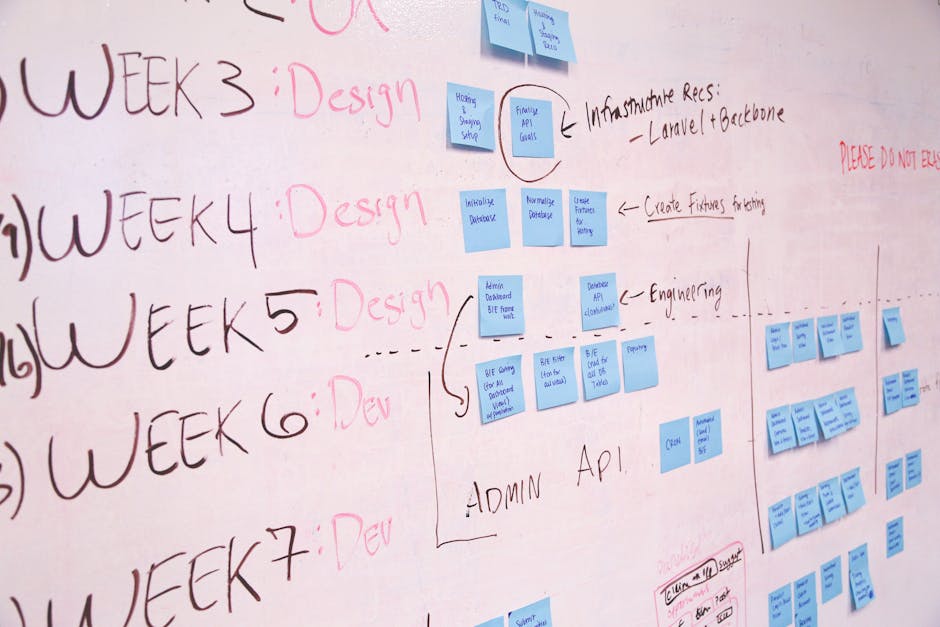
Photo by Startup Stock Photos on Pexels
## Why Use Notion Templates for Team Projects?
Notion’s flexibility is both a superpower and a trap. Starting from a blank page wastes hours. Templates solve this by providing pre-built structures with:
- Pre-configured databases for tasks, deadlines, and assignees
- Built-in views (Kanban, calendar, table) for different workflows
- Automated properties like status, priority, and date tracking
- Shared spaces that reduce the need for status meetings
Instead of building a project management system from scratch, you can install a proven template and adapt it in minutes.
## Top 5 Notion Templates for Team Collaboration
Here are the most effective templates for managing projects, improving communication, and tracking progress.
### 1. The Ultimate Project Management Hub
This all-in-one template replaces tools like Asana or Trello. It includes:
- Task database with priority, status, and assignee fields
- Sprint planning view for agile teams
- Meeting notes linked directly to projects
- Resource library for shared documents
Best for: Teams of 5–20 people managing multiple concurrent projects.
Pro tip: Add a “Blockers” column to your task database so team members can flag issues without interrupting each other.
### 2. Remote Team Collaboration Dashboard
Designed for distributed teams, this template focuses on asynchronous communication. It features:
- Daily stand-up form (linked to a database for tracking)
- Team calendar with timezone overlays
- Documentation hub for SOPs and wikis
- Social channel for non-work updates
Best for: Fully remote or hybrid teams that rely on written updates.
Pro tip: Use the “Weekly Wins” property to celebrate small achievements — it boosts morale in remote settings.
### 3. Marketing Campaign Tracker
Marketing teams juggle content calendars, ad campaigns, and deliverables. This template provides:
- Campaign database with funnel stages (awareness → conversion)
- Content calendar in timeline view
- Asset tracker for images, copy, and approvals
- Budget dashboard with actual vs. planned spend
Best for: In-house marketing teams or agencies managing 5+ campaigns simultaneously.
Pro tip: Create a “Client Feedback” database linked to each campaign to keep revision requests organized.
### 4. Agile Sprint Board for Software Teams
Perfect for engineering teams using Scrum or Kanban. Includes:
- Sprint backlog with story points
- Bug tracker with severity levels
- Retrospective template with action items
- Release notes database
Best for: Development teams of 3–15 people.
Pro tip: Use Notion’s “Rollup” feature to automatically calculate total story points per sprint.
### 5. Client Project Portal
If you manage external clients, this template keeps them informed without constant emailing. It includes:
- Client dashboard with project status and milestones
- File sharing section for deliverables
- Feedback form linked to a task database
- Invoice tracker with payment status
Best for: Freelancers, agencies, and consultants.
Pro tip: Share a “Client View” page (read-only) so clients can check progress without accessing your full workspace.

Photo by cottonbro studio on Pexels
## Comparison Table: Which Template Fits Your Team?
| Template | Team Size | Best For | Key Feature |
|---|---|---|---|
| Project Management Hub | 5–20 | General project tracking | Multi-view task board |
| Remote Collaboration Dashboard | 5–50 | Asynchronous teams | Daily stand-up integration |
| Marketing Campaign Tracker | 3–15 | Creative teams | Budget vs. actual tracking |
| Agile Sprint Board | 3–15 | Software teams | Story point rollups |
| Client Project Portal | 1–10 | Client-facing work | Read-only client view |
## How to Choose the Right Template for Your Team
Not every template works for every workflow. Use this decision framework:
### 1. Assess Your Team’s Pain Points
- Too many meetings? → Choose the Remote Collaboration Dashboard.
- Missed deadlines? → Go with the Project Management Hub.
- Client confusion? → The Client Project Portal solves this.
### 2. Match Template Complexity to Team Size
- Small teams (2–5): Start with a simple Kanban board template.
- Medium teams (5–20): Use the full Project Management Hub.
- Large teams (20+): Consider multiple linked databases (e.g., separate spaces for engineering and marketing).
### 3. Prioritize Integration Needs
- Calendar sync: Ensure the template supports Notion Calendar or Google Calendar integration.
- File storage: Check if it links to Google Drive, Dropbox, or internal uploads.
## Actionable Tips for Customizing Your Template
Once you pick a template, make it your own with these tweaks:
### Add a Weekly Review Section
Insert a recurring task that prompts the team to review completed work and adjust priorities. This prevents the template from becoming a “data graveyard.”
### Use Properties for Accountability
Add a “Reviewer” property to every task. This ensures someone is responsible for checking quality before marking items as done.
### Create a “Team Norms” Page
Document how you use the template (e.g., “Update task status daily by 3 PM”). Link this page inside the template so new members onboard faster.
### Leverage Notion Automation
- Set due date reminders for critical milestones.
- Create linked databases so updating one view (e.g., Kanban) automatically changes another (e.g., calendar).
- Use templates inside databases — create a “Recurring Task” template for weekly stand-ups or sprint planning.

Photo by Jakub Zerdzicki on Pexels
## Common Mistakes to Avoid
Even the best template fails if you misuse it. Watch out for:
- Overcomplicating properties — stick to 5–7 essential fields per database.
- Not training the team — schedule a 30-minute walkthrough for everyone.
- Ignoring permissions — set view-only access for clients or stakeholders.
- Using too many templates — pick 2–3 max to avoid fragmentation.
## Conclusion: Start Collaborating Better Today
The right Notion template transforms chaotic team projects into smooth, transparent workflows. Whether you need a simple Kanban board or a full client portal, the templates above give you a head start. Remember: the best template is the one your team actually uses. Customize it, train your team, and review usage monthly.
Ready to supercharge your team’s productivity? Visit notionkit.tech to download these templates and hundreds more — all designed to help you work smarter, not harder. Start your free trial now and see the difference a structured system makes.