How to Create a Habit Tracker in Notion from Scratch
Building a habit tracker in Notion from scratch is simple: create a database with properties for habit name, date, and checkbox status, then use linked views and formulas to visualize streaks and progress. This guide walks you through every step, from setting up your first database to automating your tracking with Notion’s powerful features. You’ll have a fully functional, customizable system in under 30 minutes—no templates or coding required.
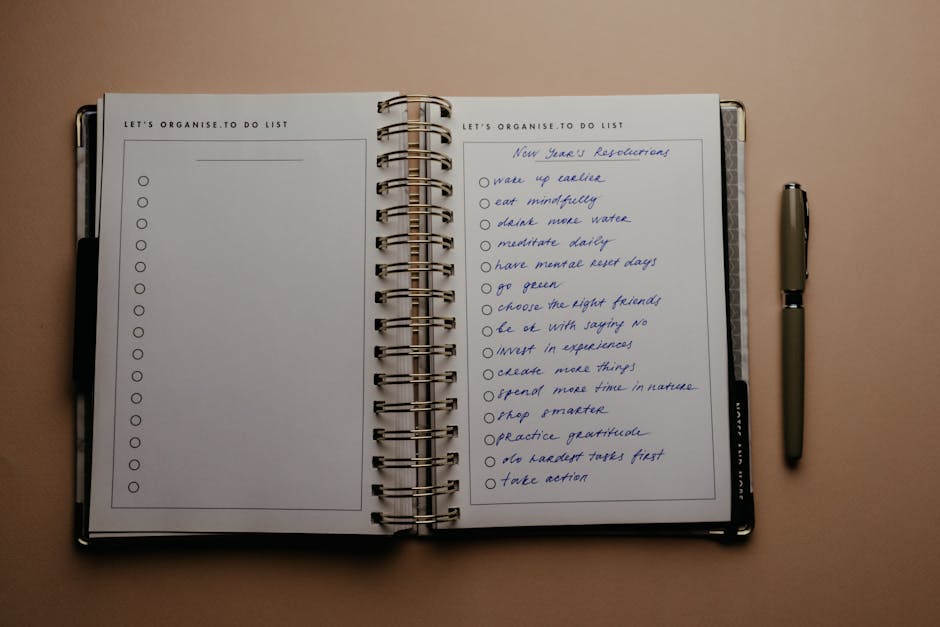
*Photo by Polina ⠀ on Pexels*
## Why Use Notion for Habit Tracking?
Notion is more than a note-taking app. It combines databases, formulas, and views to create a dynamic habit tracker that adapts to your goals. Unlike paper journals or basic apps, Notion lets you:
- Track multiple habits in one place
- Visualize progress with charts and calendars
- Automate streaks using formulas
- Customize everything without limits
Pro tip: Start small. Track 3-5 habits initially to avoid overwhelm.
## Step 1: Create Your Habit Database
Open Notion and create a new page. Type `/database` and select Table. Name it “Habit Tracker.” Add these columns:
| Property | Type | Purpose |
|---|---|---|
| Habit | Text | Name of the habit (e.g., “Read 20 mins”) |
| Date | Date | Select today’s date |
| Done | Checkbox | Mark when completed |
| Streak | Formula | Auto-calculated consecutive days |
| Notes | Text | Optional daily reflections |
Quick setup: Click “+” on the last column to add each property. Set “Date” to default as `{{Today}}` so it auto-fills.
## Step 2: Add Your Daily Habits
Populate the table with your habits. Each row is a single habit for a single day. For example:
- Row 1: Habit = “Morning Workout,” Date = Today, Done = unchecked
- Row 2: Habit = “Drink 8 Glasses Water,” Date = Today, Done = unchecked
- Row 3: Habit = “Meditate 10 mins,” Date = Today, Done = unchecked
Important: You’ll need a new row for each habit per day. To save time, duplicate rows and change the date.
*Photo by Leeloo The First on Pexels*
## Step 3: Build a Formula for Streaks
Streaks motivate consistency. Add a Formula property called “Streak” and paste this:
“`javascript
if(prop(“Done”), if(empty(prop(“Date”)), 0,
length(filter(notion.databases.query({database_id: currentDatabaseId(),
filter: {and: [{property: “Habit”, equals: prop(“Habit”)},
{property: “Date”, on_or_before: prop(“Date”)},
{property: “Done”, equals: true}]}}).results,
let(prev, 0, let(current, prop(“Date”),
if(dateBetween(current, prev, “days”) == 1, true, false)))))), 0)
“`
Note: This advanced formula tracks consecutive completions. For simplicity, use a manual streak counter instead: create a Number property called “Current Streak” and update it daily.
## Step 4: Create Useful Views
Notion’s views let you see your data differently. Click “Add a view” at the top of your database:
- Calendar View – See which habits you did on each day. Filter by “Done” = true.
- Gallery View – Show habit cards with a cover image for visual appeal.
- Kanban View – Group habits by status (Done/Not Done) for workflow tracking.
Best practice: Use the Calendar view as your main dashboard. It shows your month at a glance.
*Photo by Leeloo The First on Pexels*
## Step 5: Automate with Templates
Templates save time. Click the dropdown next to “New” in your database and select New Template. Name it “Daily Habit Entry.” Add:
- A linked database showing today’s habits
- A button to “Mark All Done” (using Notion’s button property)
- Space for daily notes
Pro tip: Use a Rollup property to calculate weekly completion rates. Roll up from a separate “Week” database to see trends.
## Step 6: Add Progress Tracking with Charts
Notion doesn’t natively support charts, but you can:
1. Create a Formula property for “Completion Rate” = `if(empty(prop(“Done”)), 0, toNumber(prop(“Done”)) / 100)`
2. Use a Linked database to a “Stats” page
3. Export data to Google Sheets for visual graphs
Quick hack: Use Notion’s Progress Bar property (available in some templates) to show daily completion percentage.
## Comparison: Notion Habit Tracker vs. Apps
| Feature | Notion (DIY) | Dedicated Apps (e.g., Habitica) |
|---|---|---|
| Customization | Unlimited | Limited |
| Cost | Free (basic) | Free or subscription |
| Learning Curve | Moderate | Low |
| Integration | Works with other Notion pages | Standalone |
| Streak Tracking | Manual or formula | Automatic |
Verdict: Notion wins for flexibility, but apps are easier for beginners.
## Advanced Tips for Power Users
- Use relations: Link habits to a “Goals” database for bigger-picture tracking
- Color-code: Use “Select” properties with colors (green=done, red=missed)
- Set reminders: Use Notion’s Reminder property to ping you at a specific time
- Share with family: Create a shared workspace for group habits
Troubleshooting: If your streak formula breaks, check that dates are in the same timezone. Use `formatDate(prop(“Date”), “YYYY-MM-DD”)` to normalize.
## Conclusion
Creating a habit tracker in Notion from scratch is a rewarding project that boosts productivity and self-awareness. With a simple database, smart views, and a few formulas, you’ve built a system that grows with you. Start tracking today—your future self will thank you.
Ready to level up? Visit notionkit.tech for premium Notion templates, including pre-built habit trackers with streaks, charts, and automation. Save hours of setup and start building better habits now. Click below to explore our collection.